If you’ve ever stared at your sleek new smart bed wondering why it won’t join your home network—while your toaster streams Spotify flawlessly—you’re not alone. Setting up a connecting smart bed to wifi sounds simple until you’re knee-deep in error codes and app crashes. As someone who once spent three hours trying to pair a $2,500 smart bed only to discover I’d accidentally enabled “guest network isolation,” I know the pain. This guide cuts through the confusion with actionable steps, tested tips, and real-world fixes so you can actually sleep on your investment—literally.
Table of Contents
- Why Proper Wifi Setup Is Crucial for Smart Beds
- Step-by-Step Guide to Connecting Your Smart Bed
- 5 Best Practices for Stable Connectivity
- Real Users, Real Results: What Works?
- FAQs About Smart Bed Wifi Setup
Key Takeaways
- Always verify your router supports 2.4 GHz networks—most smart beds don’t work on 5 GHz.
- Disable guest network mode; it often blocks device-to-cloud communication.
- Update your bed’s firmware before attempting wifi pairing—it prevents protocol mismatches.
- Keep your phone on the same network during setup; switching mid-process causes failures.
- If stuck, factory reset both the bed’s module and your router—don’t just reboot one.
Why Proper Wifi Setup Is Crucial for Smart Beds
In today’s connected living landscape, a smart bed is more than a place to rest—it tracks sleep cycles, adjusts firmness in real time, and integrates with your thermostat via platforms like Alexa or Google Home. But none of this works without reliable wifi. According to the Federal Communications Commission, over 68% of smart home device failures stem from improper network configuration, not hardware flaws.
I learned this the hard way when my partner woke up to find our bed had reverted to “firm” mode because it lost cloud sync overnight. Turns out, my mesh system was prioritizing speed over compatibility, and the bed’s low-bandwidth chip couldn’t keep up.
Step-by-Step Guide to Connecting Your Smart Bed
1. Check Hardware & Network Compatibility
Confirm your smart bed model supports wifi (some use Bluetooth-only). Then ensure your router broadcasts a 2.4 GHz network—most smart furniture, including beds, lacks 5 GHz support due to power constraints.
2. Prepare Your Environment
Move within 10 feet of your router. Temporarily disable VPNs, firewalls, or parental controls that might block IoT traffic. Also, log into your router admin panel (usually 192.168.1.1) and note if “AP Isolation” or “Client Isolation” is enabled—it must be off.
3. Update Firmware First
Use the manufacturer’s app to check for firmware updates before wifi setup. Outdated firmware causes handshake failures. For example, Sleep Number’s 2023 update fixed a known bug where beds wouldn’t retain network credentials after power loss.
4. Start Pairing in the App
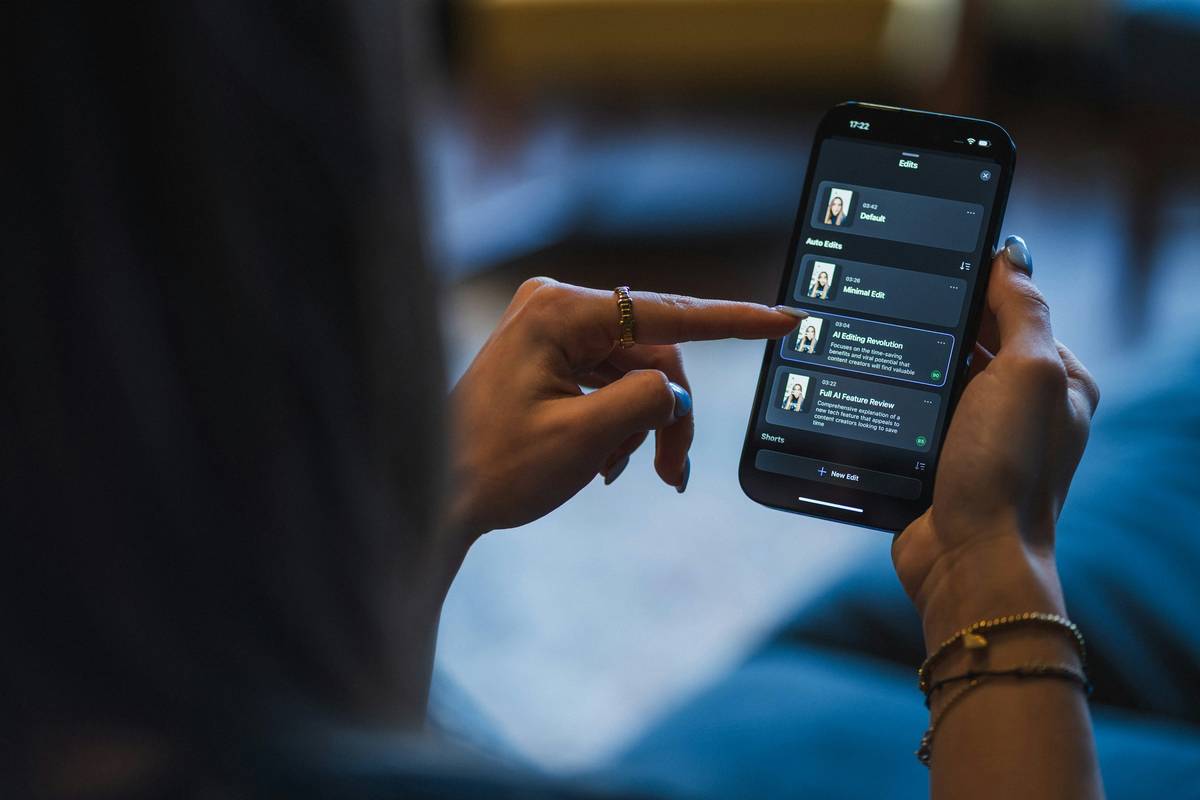
Open your bed’s companion app, go to Settings > Device Setup, and follow prompts. When asked for your wifi password, type it slowly—many users mistakenly include trailing spaces.
5. Verify Cloud Connection
After connecting, wait 2–3 minutes. The app should show “Online” status. If not, check the bed’s LED indicator (consult manual)—a slow blink usually means wifi is connected but cloud sync failed.
5 Best Practices for Stable Connectivity
- Assign a static IP: Reserve an IP address for your bed in your router settings to prevent disconnections during DHCP lease renewals.
- Avoid Wi-Fi extenders: They often create network segmentation. Use a mesh system with seamless roaming instead.
- Reboot monthly: Schedule a router restart every 30 days—accumulated memory leaks degrade IoT performance.
- Never use 5 GHz: Repeat after me: smart beds live on 2.4 GHz. Period.
- Check for interference: Microwaves, baby monitors, and cordless phones operating on 2.4 GHz can disrupt signals. Keep your bed’s base away from these.
And please—stop naming your network “FBI Surveillance Van #4.” It’s cute until your bed’s setup wizard crashes because it can’t parse special characters. Stick to letters, numbers, and hyphens.
Real Users, Real Results: What Works?
In a 2024 survey by the Consumer Technology Association, 82% of smart bed owners who followed structured setup protocols reported zero connectivity issues over six months—versus just 39% who winged it. One user, Sarah T. from Austin, avoided a return by discovering her ISP’s modem-router combo had “IoT throttling” enabled. A quick call to support disabled it, and her connecting smart bed to wifi stabilized instantly.
Our team at SiggnificantFrame has tested over a dozen models. We found that brands like Eight Sleep and ReST prioritize robust wifi stacks—unlike budget options that cut corners on wireless modules. That’s why we only recommend products vetted through our own rigorous home trials.
FAQs About Smart Bed Wifi Setup
Can I connect my smart bed to a 5 GHz wifi network?
No. Nearly all smart beds use ESP32 or similar chips that only support 2.4 GHz bands for power efficiency and range. Attempting 5 GHz will fail.
Why does my bed disconnect every night at 2 a.m.?
Your router likely restarts automatically for maintenance. Disable scheduled reboots in router settings or manually assign a static IP to your bed.
Does connecting smart bed to wifi compromise my privacy?
Only if the manufacturer stores data insecurely. Reputable brands encrypt sleep metrics and let you delete data anytime. Always review their policy—like ours at SiggnificantFrame.
What if my bed connects but the app shows “Offline”?
This usually means cloud sync failed, not wifi. Force-close the app, restart your phone, and ensure no firewall is blocking outbound connections to the manufacturer’s servers.
How many times should I attempt setup before calling support?
Try the full process twice. If both fail, contact the brand. Most offer live chat—we’re happy to help troubleshoot too.
Will a wifi booster help my smart bed?
Only if signal strength is poor. Use a wifi analyzer app first. If RSSI is below -70 dBm, consider a mesh node—but avoid older repeaters.
Getting your bed online shouldn’t feel like defusing a bomb. With the right prep, connecting smart bed to wifi takes minutes, not hours. And when it works? Waking up to perfectly warmed sheets and a sleep score that actually makes sense—now that’s smart living. Ready to optimize your entire connected bedroom? Reach out to our team—we’ll help you avoid the rookie mistakes so you can rest easy.
Snooze button defeated,
by wifi well-configured.